

Administrator checklist
To ensure a successful transition, complete the following: ☐ Enable Slack Real Time Search in Glean via Admin Console☐ (Optional) Select a test group to pilot the feature
☐ Verify performance by using Glean for Slack-related queries for 1–2 weeks
☐ Submit feedback to the Glean team when something looks off
Enable Slack Real Time Search
- Navigate to Admin Console > Data sources > Add data source.
- Search for and select Slack Real Time Search.
- In the Setup tab, confirm you have Slack Admin privileges (required to install marketplace apps).
- Enter the following credentials:
- Slack domain: Your workspace domain (e.g.,
yourdomainfromyourdomain.slack.com). - Workspace ID: The unique ID found in your browser URL (e.g.,
T123...fromapp.slack.com/client/T123...).
- Slack domain: Your workspace domain (e.g.,
- Click Authorize and follow the prompts to install the Slack Real Time Search marketplace app.
- Save the data source.
(Optional) Configure a test group
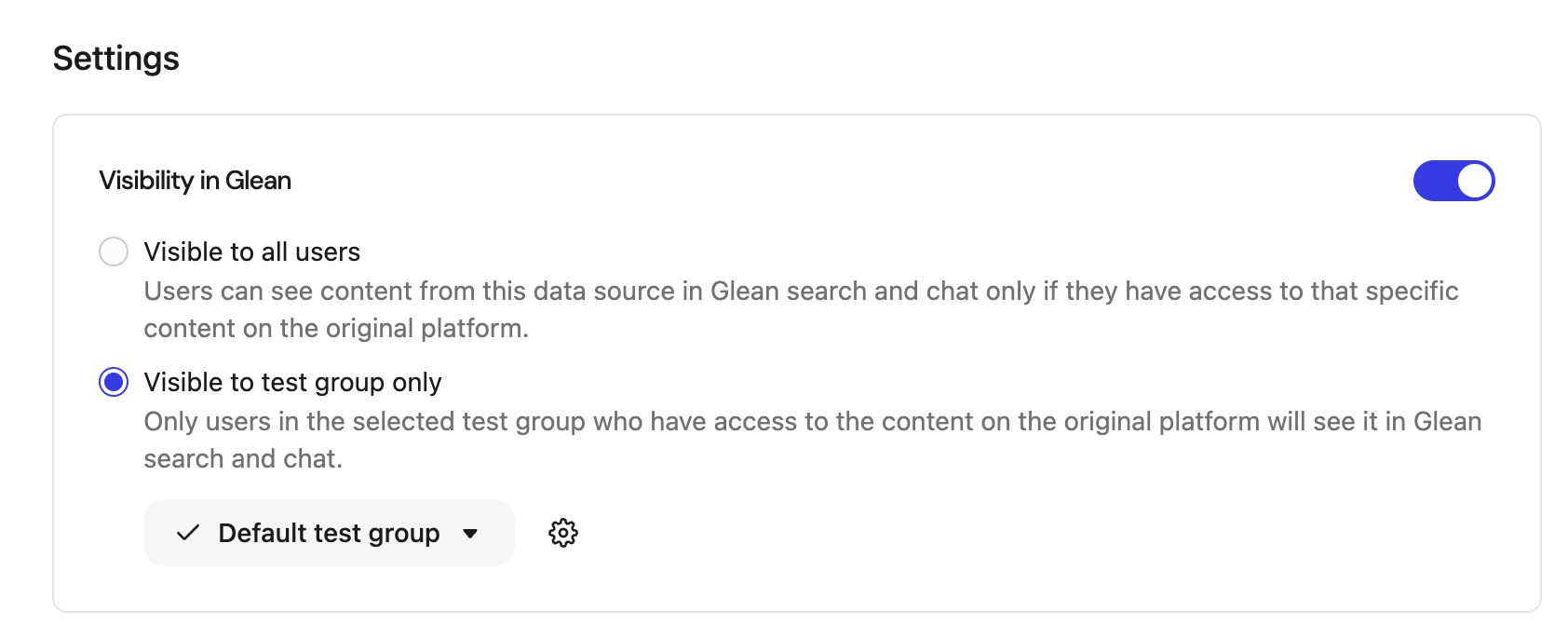
Roll out RTS safely by starting with a subset of users before expanding to the entire organization. After setting up the Slack RTS connector:- In Admin Console > Data sources > Slack Real Time Search > Overview navigate to the Settings section.
- Under Visibility in Glean, select Visible to test group only.
- Choose an existing test group or create a new test group. For more information, see Test groups for data sources.
- Pilot cohort: IT, Support, or identified power users.
- Slack-heavy teams: Engineering or Customer Success.
- Each user must still perform a one-time Slack authorization (see end-user section).
- Once validated, you can switch visibility to Visible to all users.
End-user experience
Users within the active test group will see a Slack authorization banner on their Search or Home pages to connect Slack Real Time Search.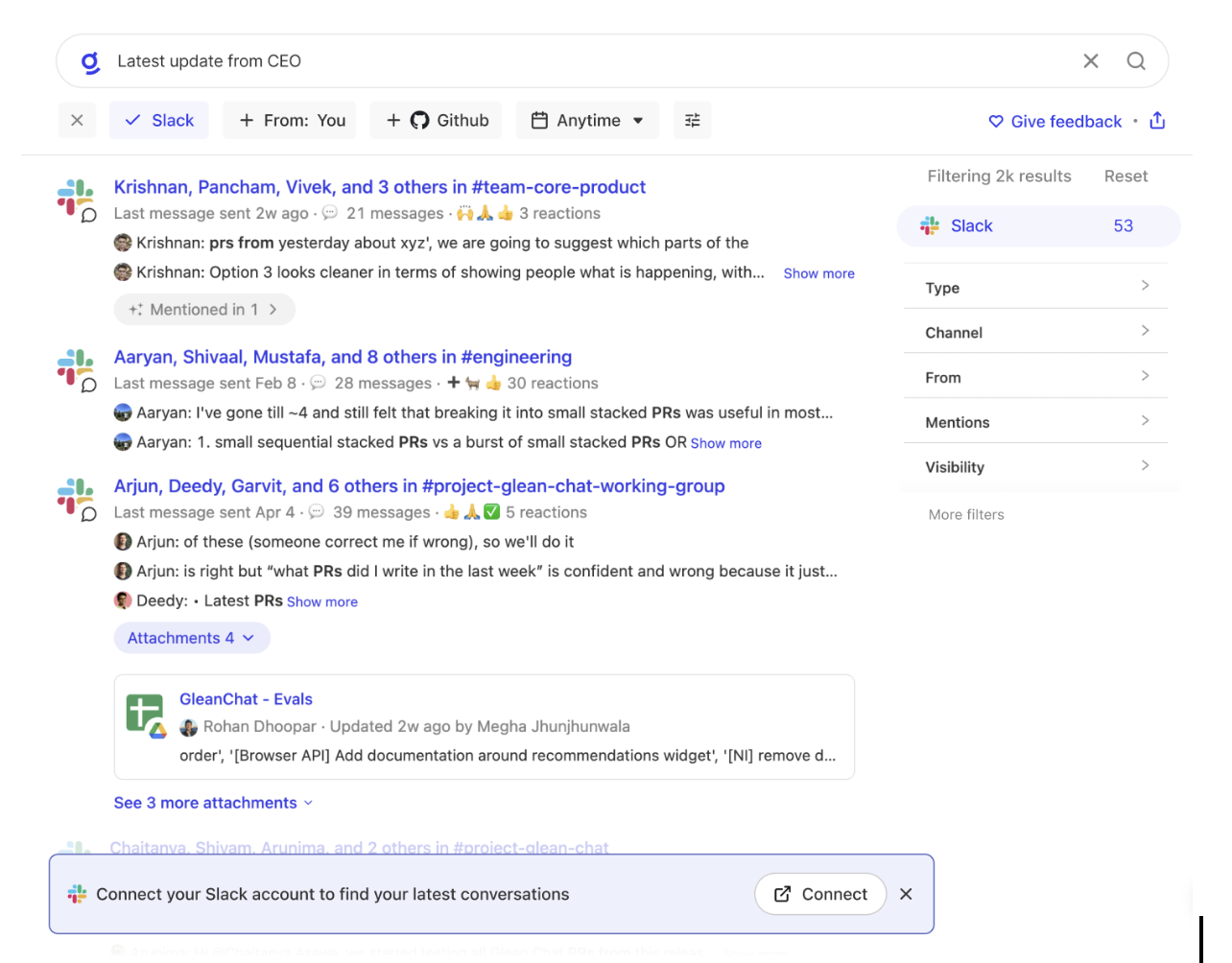
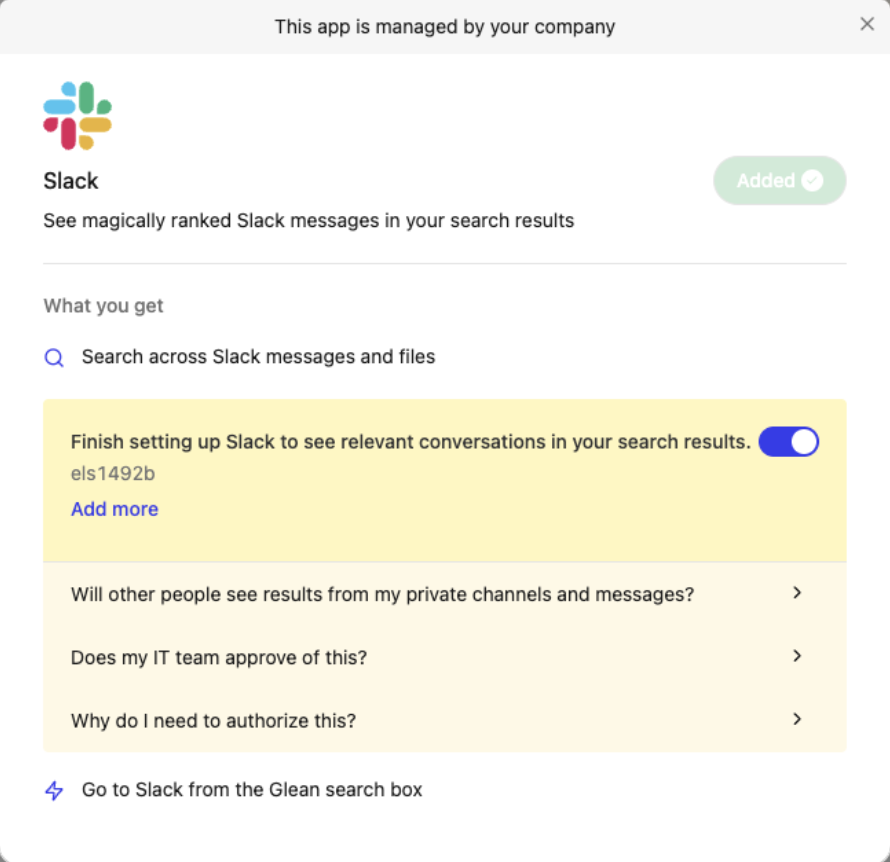
- See a dedicated Slack section in search results containing messages and threads.
- Receive Slack-sourced content within Assistant and Gleanbot responses.
- Note: Users can re-trigger authorization at any time via their Glean Settings page.
Feedback collection
To meet our quality standards, we require concrete feedback from your test groups.Guidelines for test users
Ask your pilot users to:- Use Glean for your normal Slack‑related searches and questions for the next 1–2 weeks.
- When something looks off, capture:
- The exact query you ran
- What you expected to see
- What you actually saw (screenshot if possible)
- Whether you were in Search, Assistant, or Gleanbot
Submit feedback to Glean
- Primary path: Post feedback directly in the designated Slack channel shared with Glean admins.
- Secondary path (Gleaniverse): Post in the Slack RTS feedback space.
- Attend office hours to review live examples with Glean Product and Engineering.