

Prerequisites
- Glean OAuth authorization server enabled (Admin Console > Settings > Third-party access)
- MCP server enabled (Admin Console > Platform > MCP)
- Firewall configured to allow connections from Anthropic to your Glean instance (see Anthropic’s IP addresses documentation)
Add Glean MCP Server to Claude Desktop
Open your Anthropic admin console
Navigate to the place where you manage Claude Desktop integrations for your organization.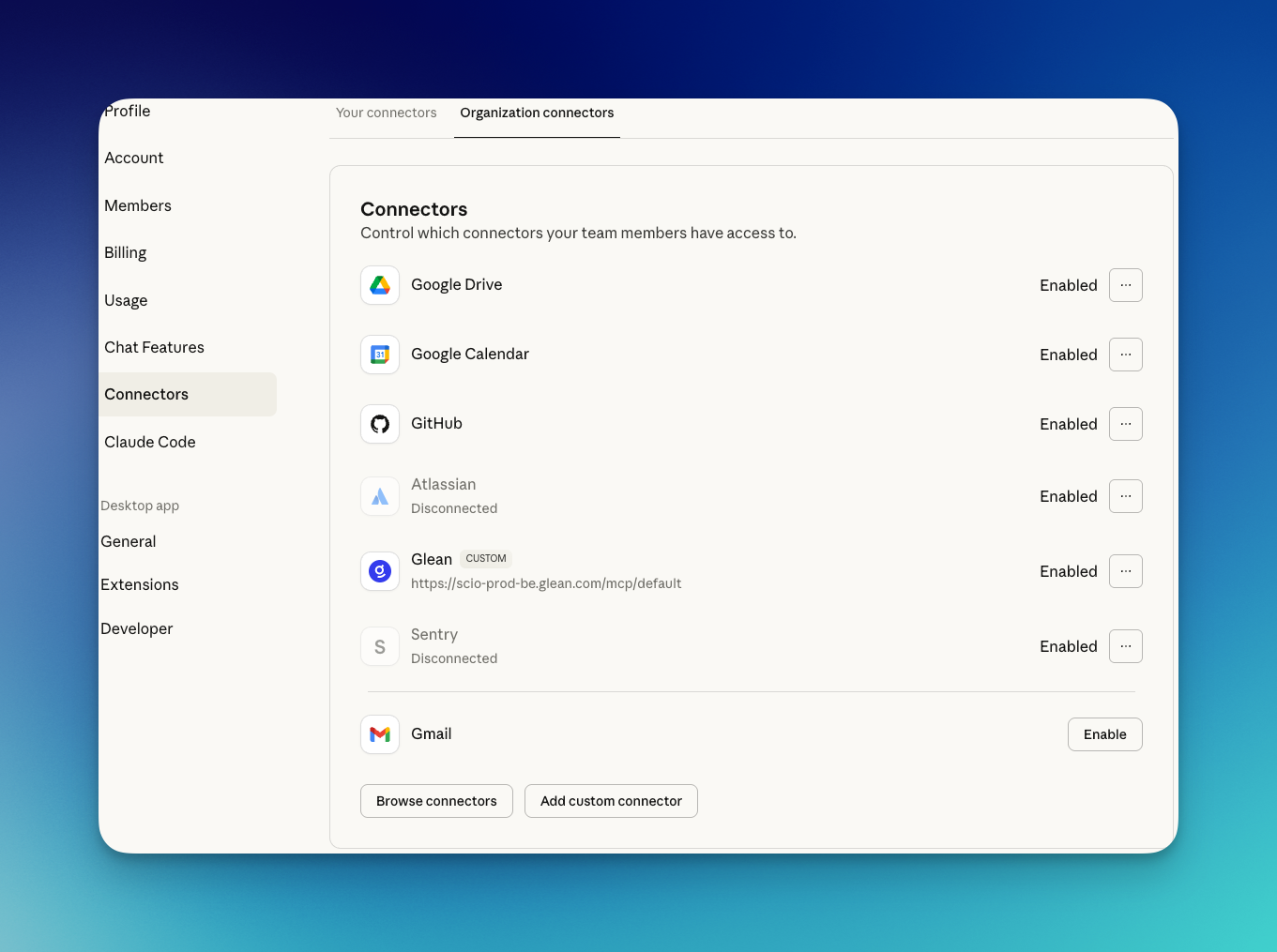
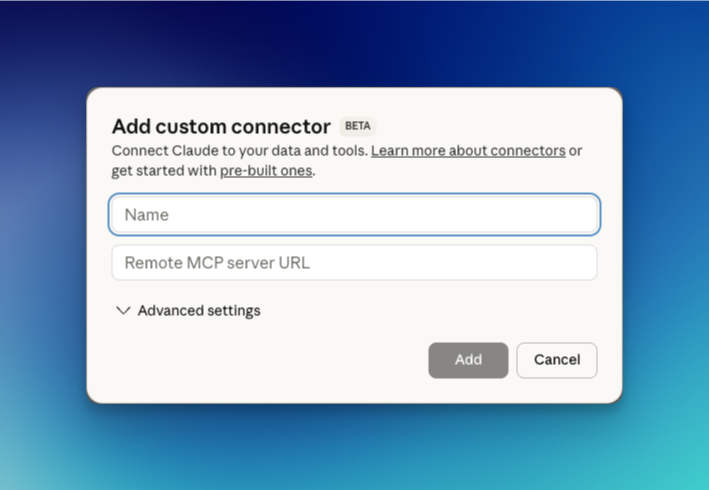
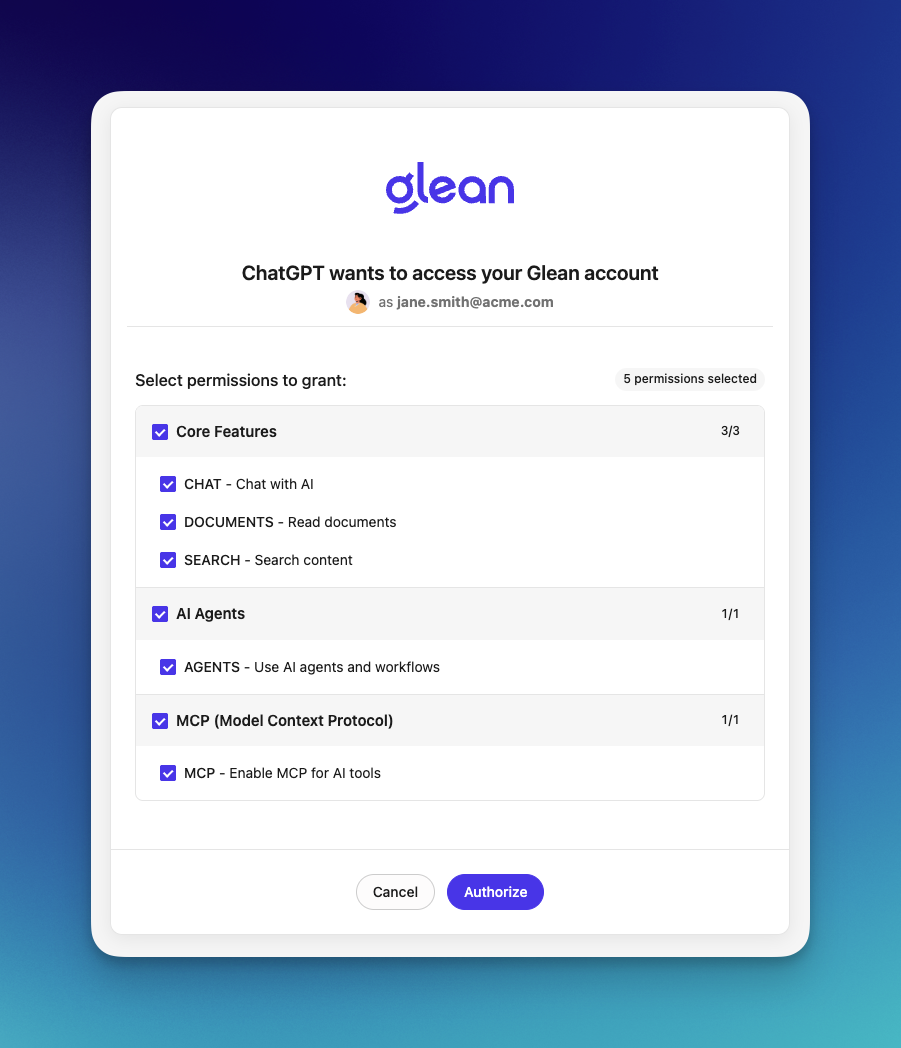
Claude Desktop MCP Constraints
- Admin-managed install: Configuration is performed at the organization level in the Anthropic admin console
- HTTP transport: Supports remote MCP servers over HTTP
- Tools: Full support for search, chat, and read_document
- Authentication: OAuth 2.1 via Glean’s authorization server
Troubleshooting
Connection Issues
If users report connection failures:- Verify the MCP server URL is correct
- Ensure OAuth authentication completed successfully
- Check that users have active Glean accounts with appropriate permissions
Tool Availability
If tools aren’t appearing in Claude Desktop:- Confirm the server is enabled in Admin Console
- Verify tools are enabled on the specific server configuration
- Have users restart Claude Desktop to refresh the connection
- For generic auth/network issues, see Troubleshooting MCP Connectivity