

Prerequisites
- Glean OAuth authorization server enabled (Admin Console > Settings > Third-party access)
- MCP server enabled (Admin Console > Platform > MCP)
Add Glean MCP Server to ChatGPT
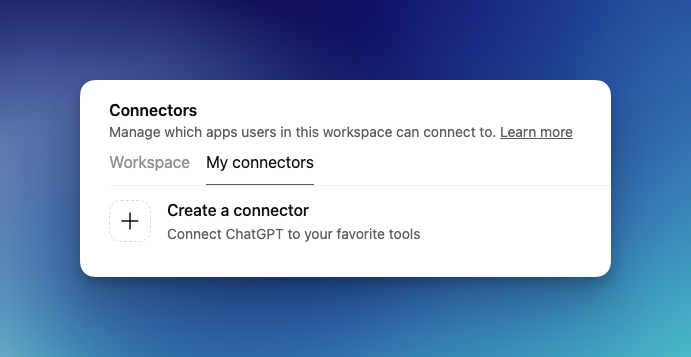

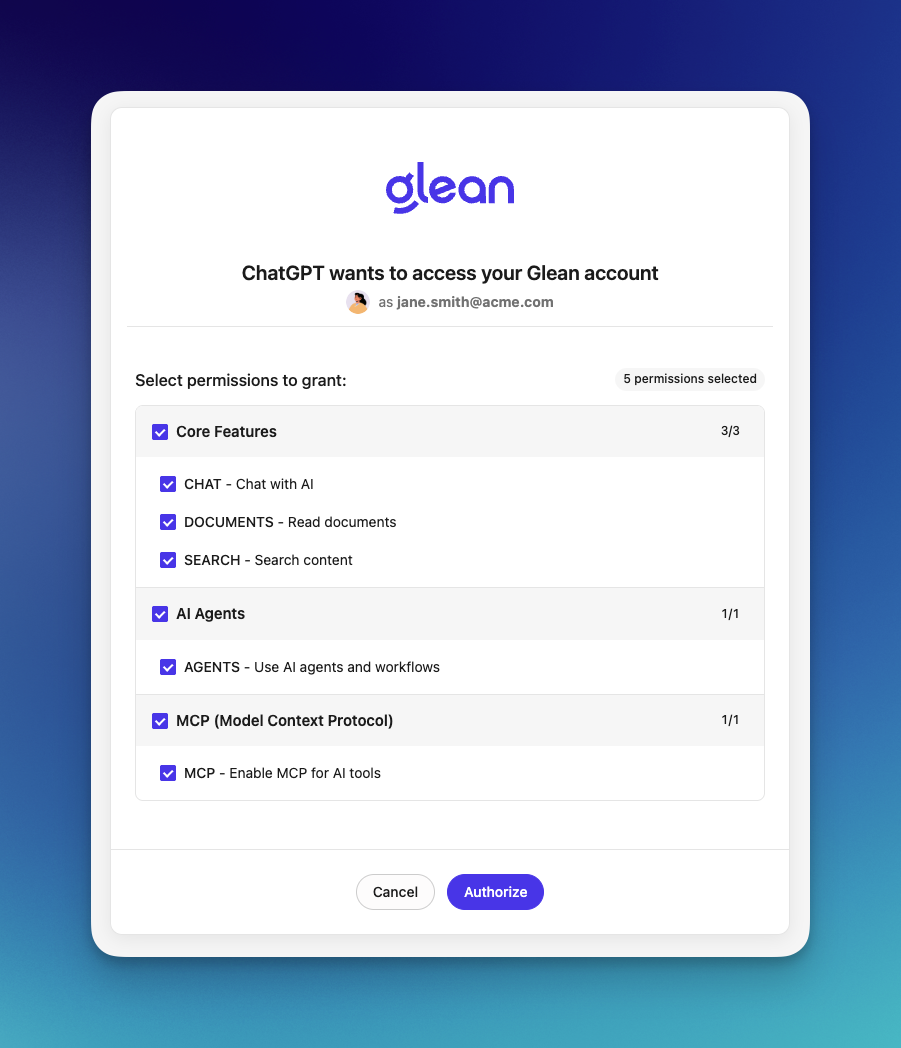
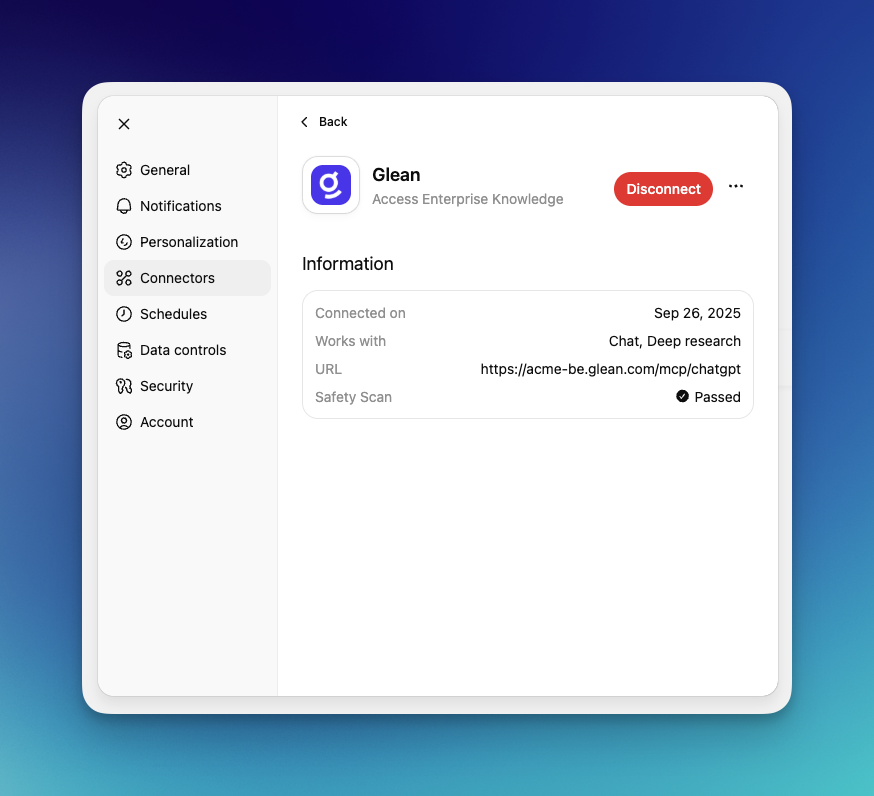
ChatGPT MCP constraints
- Web-based managed connector: configuration is performed in ChatGPT’s UI; there is no local config file support.
- HTTP-only transport: stdio is not supported for remote servers.
- Limited tool surface: only
searchandfetchequivalents are available when calling MCP servers. - Fixed endpoint format:
https://[instance-name]-be.glean.com/mcp/chatgpt(admin-managed install).
- OpenAI Developer Mode guide: https://platform.openai.com/docs/guides/developer-mode
- Connectors in ChatGPT (OpenAI Help): https://help.openai.com/en/articles/11487775-connectors-in-chatgpt
Troubleshooting
Initial connection error / cannot complete connection
If you encounter a connection error when setting up the ChatGPT connector:- Refresh the page after the initial connection attempt
- Re-add the Glean MCP connector in ChatGPT settings
- Verify you are using the correct endpoint:
https://[instance-name]-be.glean.com/mcp/chatgpt
- For generic auth/network issues, see Troubleshooting MCP Connectivity
Using the Glean Connector in ChatGPT
Once you’ve configured the Glean MCP connector, your users need to activate it in their ChatGPT conversations. The connector is not automatically enabled and is located in a submenu that can be easy to miss.Open the tools menu
In a ChatGPT conversation, click the plus (+) icon to the left of the message input field to expand the tools menu.

Users need to activate the Glean connector in each new conversation where they want to use it. The connector does not remain active across all conversations by default.