

Overview
File Upload enables users to upload and analyze local files directly in Glean Assistant, Public Knowledge, and Apps. This feature allows users to query, summarize, and generate content from uploaded files. The upload limits vary based on the model used in your Glean instance.File content and metadata are stored in the chat sessions of users and are retained while the chat session is present in the history.
Supported File Formats
Document Files
Document Files
- DOC
- DOCX
- Pages
Spreadsheet Files
Spreadsheet Files
- XLS
- XLSX
- Numbers
Presentation Files
Presentation Files
- PPT
- PPTX
- Key
Text Files
Text Files
- CSV
- JSON
- XML
- TXT
- RTF
- VTT
Web Files
Web Files
- HTML
- CSS
- SCSS
- SASS
Code Files
Code Files
- Java
- Python
- JavaScript
- TypeScript
- JSX
- TSX
- C++
- C
- Jupyter Notebooks
- SQL
- Shell Scripts
- Go
- YAML
- Log Files
Image Files
Image Files
- JPG/JPEG
- PNG
- WebP
Key Features
File Upload
Users can upload up to 5 files directly from their local computer, with each file having a maximum size of 64 MB.Real-Time Querying
Query the text content of uploaded files immediately after upload for instant analysis.Document Metadata
The chat UI displays document metadata including title and file type for easy reference.File Management
File Deletion
Users can delete uploaded files before submitting their first query. After query submission, files can only be removed by deleting the chat session history.
API Support
Developer platform customers can utilize our API for file uploads. Refer to our API documentation for details.Security and Privacy
Security Features
- Files are parsed and scanned for malware before storage
- Malware-infected files trigger upload errors
Privacy Features
- Uploaded files are only accessible to the uploading user
Upload Limits
The maximum file size and number of files allowed per session depends on your model:| Model | File Limit | Size Limit |
|---|---|---|
| 128K Models | 5 files | 64 MB |
| 32K Models | 4 files | 32 MB |
| 8K Models | 2 files | 16 MB |
Minimum file size for upload is 1 KB
Known Limitations
Enabling File Upload
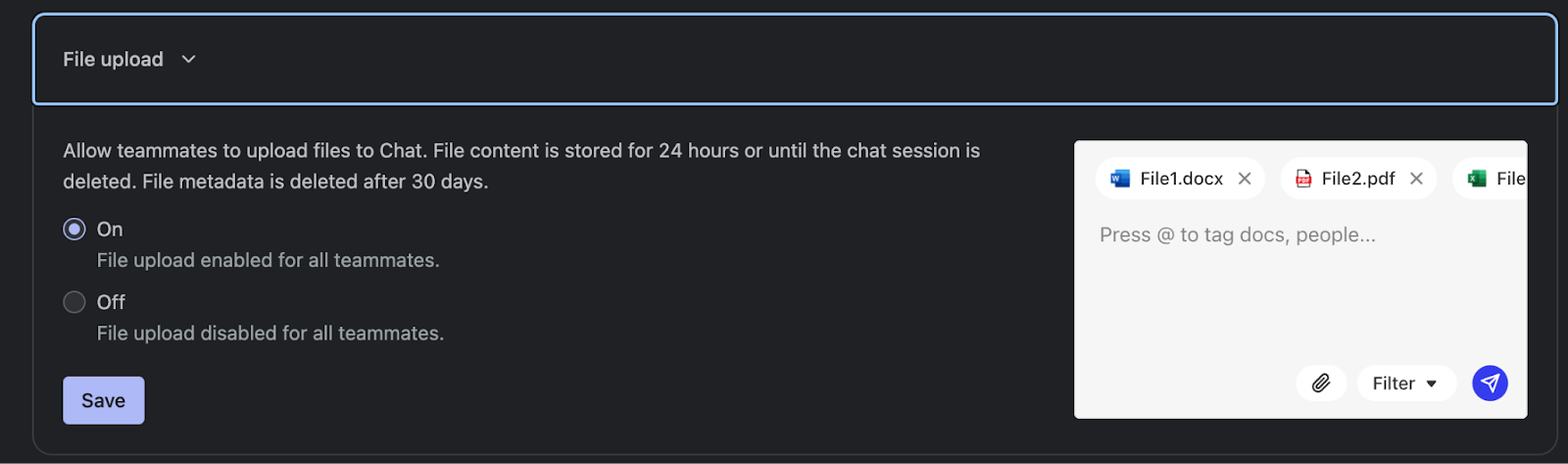
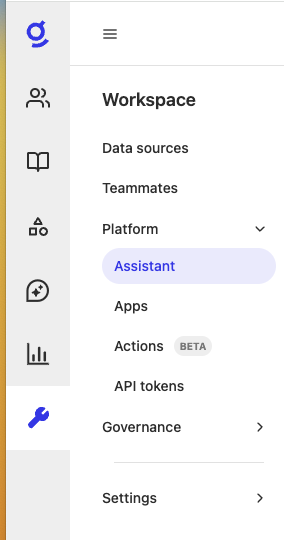
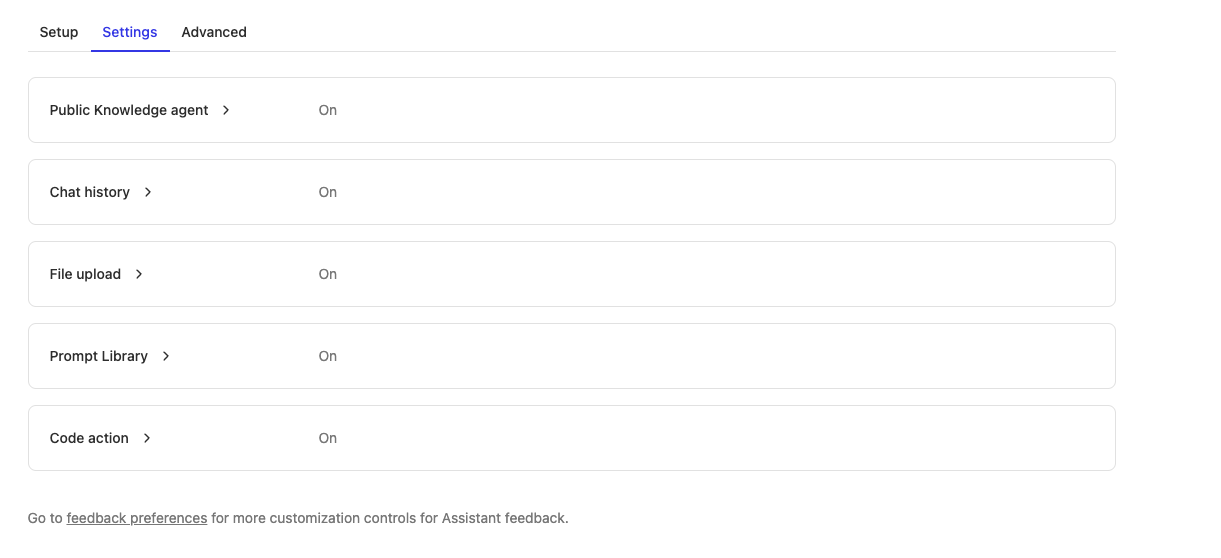
To enable file upload for all users:- Navigate to the Assistant section in workspace Settings
- Locate the File Upload toggle
- Enable the feature
File Upload is disabled by default for existing customers (as of GA on 9/24) but enabled by default for new customers.
Related Features
- Data Analysis for Spreadsheets
- File Creation and Export to cloud storage services (GDrive, OneDrive)
Future Development
Planned Enhancements
Planned Enhancements
- Support for larger file sizes
- More robust support for PDFs
- Improved data analysis for spreadsheets and CSV files
- Support for multimedia files:
- Video (mp4, mov, avi)
- Audio (mp3)